
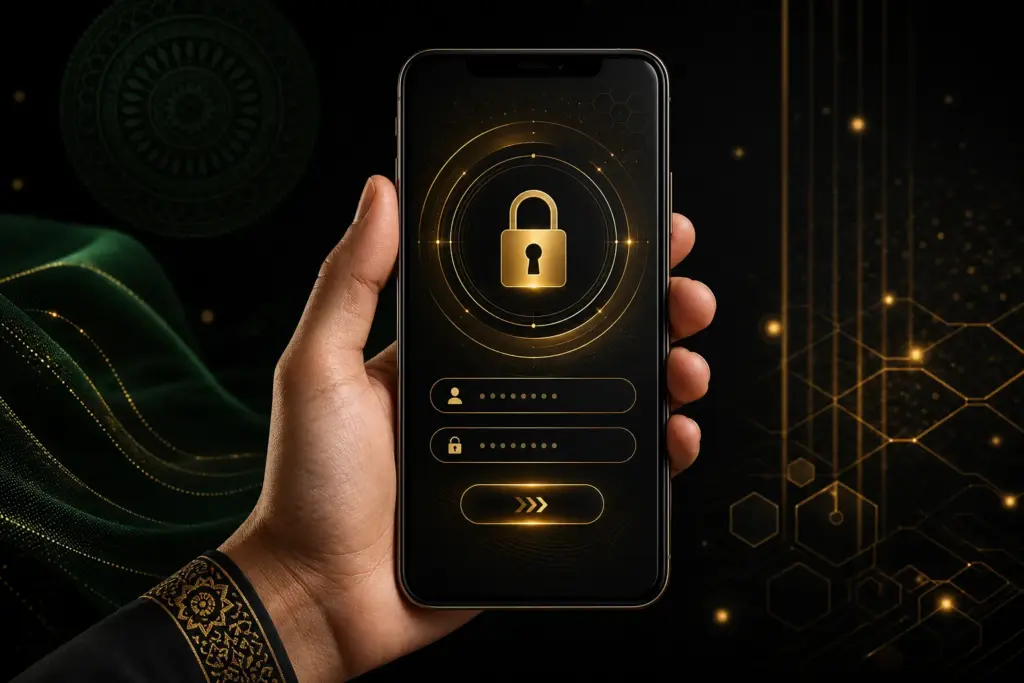
When searching for UUOK App or APK, source verification should be done first. For Android users, checking brand spelling, HTTPS, file source, version notice, device permission, and storage status before installing the app makes it easier to avoid wrong files, copied pages, or risky downloads.
This page is not for promoting download links; rather, it is to explain what to verify before deciding on app access. Mobile browser access, APK installation, update issues, version mismatches, low internet, permission risks, and the relationship between the app and login are explained separately.
What you need to know before downloading UUOK App
Before downloading the app, check the URL spelling, HTTPS lock, page design consistency, and file source. Ads that look like the same name, shortened links, or forwarded APKs may not be safe. If any file requests SMS, contact, overlay, or unnecessary permissions before installation, it is better to stop the installation.
Be cautious if the download page does not have version, update date, device requirements, and support notes. If a verified source is not found, accessing information through the browser may be safer. Before taking the app UUOK Bangladesh 2026 Information Guide check the main context.
- Match the file source and domain spelling.
- Keep unknown source permission temporary.
- After installation, review the permission list again.
- Avoid unverified mods or hacked builds.
UUOK APK Warning for Android Users
When installing Android APK, system security settings, storage, network, and version compatibility can affect the process. Installation errors may occur if there is an old Android version or a corrupt file. Additionally, low internet may result in incomplete file downloads, showing installation failure.
If OTP, password, or wallet PIN is requested when obtaining the APK file, it is not a normal app installation flow. App installation and account login are separate steps; private credentials should not be provided during installation. If the app does not work, first check cache clear, free storage, device restart, and update notices.
UUOK App vs Mobile Browser Access
The app can provide quick access, but browser access sometimes works as a safer first check. When opening a page through the browser, URL, certificate, content consistency, and navigation are seen first. If there are doubts about the source before installing the app, it is better to understand the login or registration flow from the browser page.
When using a mobile browser, be aware of saved passwords, auto-fill, pop-up permissions, and shared device risks. When using the app, check for update notices, permission changes, and device-level notification control. Both access methods are not safe without security habits.
| Access method | Advantages | Warnings |
|---|---|---|
| App | Quick navigation and notification | permission, version, source |
| APK | Android manual install | unknown source, corrupt file |
| Browser | check first before install | URL spelling, saved password |
UUOK App Update, Version and Permission Check
When an update notice appears, check the version number, update reason, and permission change before installing the new file while keeping the old file. Do not approve any update that suddenly requests SMS read, contact access, or overlay control without understanding the reason.
Version mismatch can create login issues, especially if the server-side update has occurred, old App requests may be rejected. However, every error does not mean a new APK is needed; also check network, cache, storage, and device time settings.
General solutions if UUOK App is not working
If the App does not open, check airplane mode off, mobile data, DNS, storage, cache, and restart. If the login page does not open, verify the page status with browser access. If there is an OTP issue, it may not be an App problem; there could be SMS delay or phone number mismatch.
If it crashes repeatedly, do not keep unsafe files. It is better to remove the App, change the password, and review device permissions. After that UUOK Login assistance ও Login problem guide check to match the access steps.
Related pages and next steps
- Verify the App source before logging into UUOK
- Device preparation before registering UUOK
- UUOK App Download Warning
- UUOK APK Android usage instructions
- Verify if UUOK is safe
User's real App verification view
Suppose a user is looking to access the App from an Android phone. The first search result shows an APK file, the second result shows a mobile browser page, and the third result shows a social link. The safe method is to avoid the social link and check the browser page for spelling and HTTPS, then compare the file source, version note, and permission request.
If notification, storage, or camera permission is required after installing the App, it should not be approved without understanding why it is needed. An OTP or password may be required during login, but asking for credentials during APK installation is not normal. Understanding this difference is the main task of the App page.
If there is low internet or low storage, the file may become corrupt. Additionally, if the Android version is old, installation may fail. Therefore, instead of searching for a new file at the first sign of a problem, check storage, cache, version, network, and source consistency first.
Frequently asked questions
<!– wp:yoast/faq-block {"questions":[{"id":"faq-question-9475a435bf-0","question":["Where should I get the UUOK App?"],"answer":["Consider the source that clearly shows brand spelling, HTTPS, file source, and update note first; avoid random social links.
“],”jsonQuestion”:”Where should I get the UUOK App?”,”jsonAnswer”:”Consider the source that clearly shows brand spelling, HTTPS, file source, and update note first; avoid random social links.”},{“id”:”faq-question-42d971a6c4-1″,”question”:[“What should I do if unknown source is required to install UUOK APK?”],”answer”:[“Grant temporary permission if necessary and turn it off after installation. Check the permission list again.
“],”jsonQuestion”:”What should I do if unknown source is required to install UUOK APK?”,”jsonAnswer”:”Grant temporary permission if necessary and turn it off after installation. Check the permission list again.”},{“id”:”faq-question-197f0f9da0-2″,”question”:[“What should I check first if the UUOK App is not working?”],”answer”:[“Check network, storage, cache, Android version, update notice, and device restart.
“],”jsonQuestion”:”What should I check first if the UUOK App is not working?”,”jsonAnswer”:”Check network, storage, cache, Android version, update notice, and device restart.”},{“id”:”faq-question-e1746d2272-3″,”question”:[“Will I need OTP during App installation?”],”answer”:[“No. If OTP, password, or wallet PIN is required during the App installation step, it is a high-risk signal.
“],”jsonQuestion”:”Will I need OTP during App installation?”,”jsonAnswer”:”No. If OTP, password, or wallet PIN is required during the App installation step, it is a high-risk signal.”},{“id”:”faq-question-ff1c26e915-4″,”question”:[“Is the mobile browser an alternative to the App?”],”answer”:[“Yes, browser access can be useful as a first check, especially if there are doubts about the source.
“],”jsonQuestion”:”Is the mobile browser an alternative to the App?”,”jsonAnswer”:”Yes, browser access can be useful as a first check, especially if there are doubts about the source.”},{“id”:”faq-question-3e027f16c5-5″,”question”:[“What is version mismatch?”],”answer”:[“If the old App version does not match the server update, there may be login or page load issues.
“],”jsonQuestion”:”What is version mismatch?”,”jsonAnswer”:”If the old App version does not match the server update, there may be login or page load issues.”},{“id”:”faq-question-1a233f7e5b-6″,”question”:[“How to understand a corrupt APK?”],”answer”:[“Install fail, file size mismatch, repeated crash, or suspicious permission can be signals of a corrupt or risky file.
“],”jsonQuestion”:”How to understand a corrupt APK?”,”jsonAnswer”:”Install fail, file size mismatch, repeated crash, or suspicious permission can be signals of a corrupt or risky file.”},{“id”:”faq-question-4726b61d70-7″,”question”:[“Is it safe to use the App on a shared device?”],”answer”:[“Using the App or saved password on a device other than your own is risky; please logout and clear data.
“],”jsonQuestion”:”Is it safe to use the App on a shared device?”,”jsonAnswer”:”Using the App or saved password on a device other than your own is risky; please logout and clear data.”}]} –>Consider the source that clearly shows brand spelling, HTTPS, file source, and update note first; avoid random social links.
Grant temporary permission if necessary and turn it off after installation. Check the permission list again.
Check network, storage, cache, Android version, update notice, and device restart.
No. If OTP, password, or wallet PIN is required during the App installation step, it is a high-risk signal.
Yes, browser access can be useful as a first check, especially if there are doubts about the source.
If the old App version does not match the server update, there may be login or page load issues.
Install fail, file size mismatch, repeated crash, or suspicious permission can be signals of a corrupt or risky file.
Using the App or saved password on a device other than your own is risky; please logout and clear data.